
Remove Background From Image For Free: The Ultimate Guide
Has a cluttered background ever ruined a perfect photo of a product or a great portrait? You are not alone. In the past, isolating a subject from its surroundings required expensive software like Photoshop and hours of tedious manual tracing with the pen tool. Fortunately, times have changed. Today, anyone can learn how to remove background from image for free using powerful, AI-driven online tools in just a matter of seconds.
Whether you are an e-commerce seller needing clean product shots, a social media manager creating graphics, or just making a fun meme, mastering the automatic background eraser is an essential digital skill. This guide will walk you through the process, share expert photo editing tips, and compare the best free tools available today.

The Magic of AI Background Removal
Modern free background remover tools utilize advanced artificial intelligence and machine learning. Instead of you manually telling the computer what to keep and what to erase, the AI analyzes the image. It identifies the main subject—be it a person, a car, or a potted plant—and automatically separates it from the foreground.
The result is a transparent background image, usually saved as a PNG file. This transparency allows you to place your subject onto any new backdrop, into a presentation, or on a website without a distracting rectangular border.
Step-by-Step Guide: Using a Free Background Eraser Tool
While there are many tools available, the process is generally the same across most browser-based platforms. For this example, we will look at a generic workflow that applies to top-tier free tools like Adobe Express or Canva’s free features.
Step 1: Select Your Tool and Upload
Navigate to your chosen remove background online tool. Look for a prominent button that says “Upload Image” or “Select Photo.” Most tools support standard JPG and PNG formats. Drag and drop your image onto the canvas.
Step 2: Let the AI Do the Work
Once uploaded, the magic happens instantly. You usually don’t even need to click a “convert” button. The AI will process the image for a few seconds, detect the subject, and erase everything else.
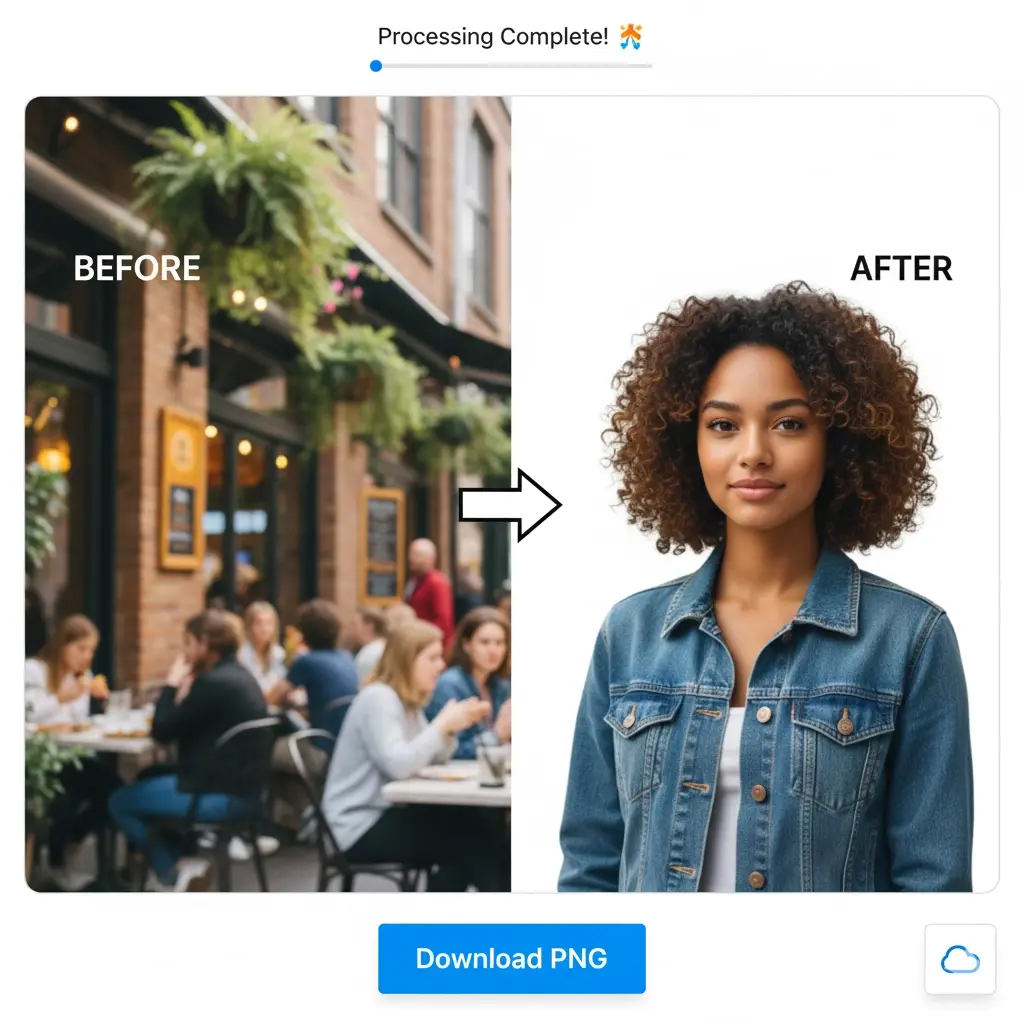
Step 3: Review and Refine (If Necessary)
AI is incredibly smart, but it isn’t perfect. Tricky areas like fine wisps of hair, animal fur, or highly complex background patterns can sometimes confuse the algorithm.
Many high-quality free tools provide a manual “Edit,” “Erase,” or “Restore” brush after the initial processing. If the AI missed a spot, use the erase brush to remove it. If it accidentally deleted part of your subject, use the restore brush to bring it back.
Step 4: Download Your Transparent Background Image
Once you are satisfied with the cutout, click the “Download” button.
Pro Photo Editing Tip: Always choose the PNG format when downloading. JPG files do not support transparency and will fill in your newly removed background with solid white.
When Free Tools Aren’t Enough
While free automatic background erasers are fantastic for 90% of tasks, they have limitations. You might encounter issues with:
- Lower resolution downloads on free tiers.
- Difficulty isolating translucent objects like glass or smoke.
- Imperfect edges on very complex professional photos.
For high-end commercial work where every pixel matters, you may need manual intervention by professionals. If you find yourself struggling with complex images, it might be time to explore dedicated professional help.
If you need flawless results for high-volume commercial projects, check out our professional solutions at Clarity Edit Background Removal Services.
Top Free Background Remover Tools Compared
There are dozens of options, but these three are consistently reliable for quick, free results.
Feature
Cost
AI Accuracy
Editor features
Best For
Adobe Express
Free (requires account)
Excellent
Robust post-editing capabilities
High-quality results and further design work.
Remove.bg
Free (limited res) & Paid
Excellent
Basic erase/restore
Quickest, no-fuss removal for web use.
Canva (Free Account)
Free (limited use) & Paid
Very Good
Great design integration
Incorporating the image directly into graphics.
A great starting point for high-quality, reliable results is Adobe’s free online tool.
Try the excellent free background remover available at Adobe Express.
Benefits of Removing Image Backgrounds
Why should you bother learning this skill? The benefits go beyond just aesthetics:
- Professionalism: Clean, consistent product photos on pure white or transparent backgrounds increase buyer trust and sales conversions in e-commerce.
- Versatility: Once an image has a transparent background, it becomes a reusable asset. You can place the same subject on a beach, in an office, or on a solid color background instantly.
- Focus: By removing cluttered surroundings, you force the viewer’s eye directly onto the most important part of your image.
- File Size Reduction: Removing complex background data can sometimes reduce the overall file size of an image intended for web use.

Conclusion
Learning how to remove background from image for free is one of the most valuable quick-fix skills in digital content creation. Thanks to AI-powered automatic background erasers, what used to take hours now takes seconds. By following the steps outlined above and utilizing reputable online tools, you can elevate your photos, create stunning graphics, and ensure your visual content always looks polished and professional.
Frequently Asked Questions (FAQs)
Are these “free” background remover tools actually free?
Yes, many reputable tools offer a genuinely free tier. However, they often come with limitations, such as a cap on the number of images you can process per day or restricting free downloads to a lower resolution (good for web use, but perhaps not for print).
Why must I save the image as a PNG?
To maintain a transparent background image, you must use a file format that supports transparency. PNG is the standard for this. If you save as a JPG, the transparent area will be converted to solid white.
Can I remove backgrounds on my phone?
Absolutely. Most modern phones have built-in photo editing tips and tools that include background removal. Furthermore, most web-based tools like Adobe Express work perfectly in mobile browsers.
The automatic background eraser cut off part of my subject’s hair. How do I fix it?
Look for tools that offer a “refine edge” or manual “restore brush” feature after the initial AI scan. This allows you to manually paint back in fine details like hair or fur that the AI might have missed.