
Table of Contents
How to Remove Background From Image for Free: A Complete 2026 Guide
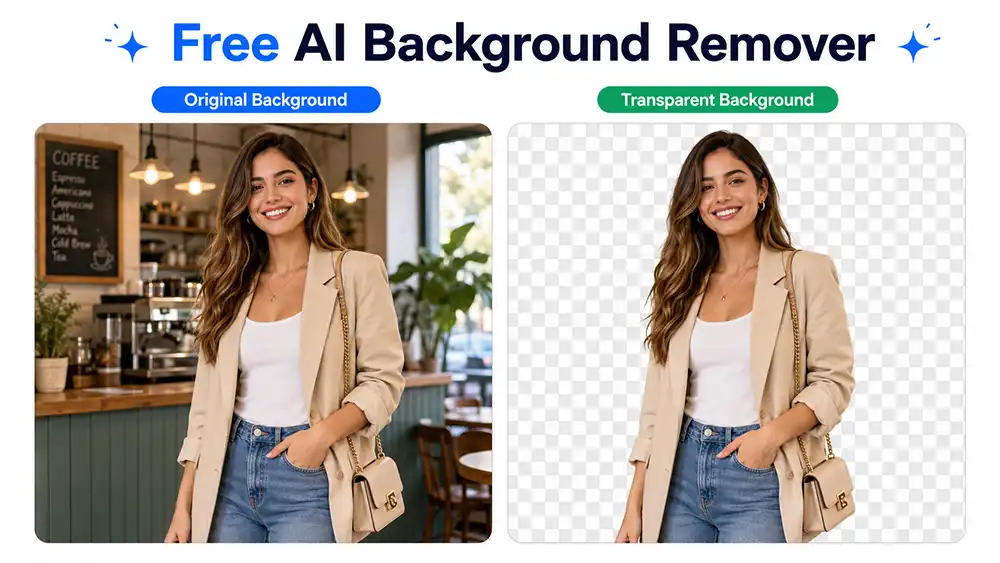
Quick answer: To remove a background from an image for free, upload your photo to an AI-powered background remover such as remove.bg, Canva, or Adobe Express. The AI detects your subject automatically and erases everything else in a few seconds, leaving a transparent PNG you can download instantly. This works well for one-off photos, but batch orders, fine detail like hair or fur, and print-ready quality usually need a trained editor’s touch-up — more on that below.
Free background remover tools have made a once-tedious task nearly instant. What used to require Photoshop’s pen tool and real patience is now a 10-second upload for casual use. This guide covers exactly how the free tools work, compares the most reliable options honestly, adds a couple of manual methods most roundups skip, and explains where free tools reach their limit — so you know when it’s worth handing images to a professional editor instead.

How Free Background Removal Tools Actually Work
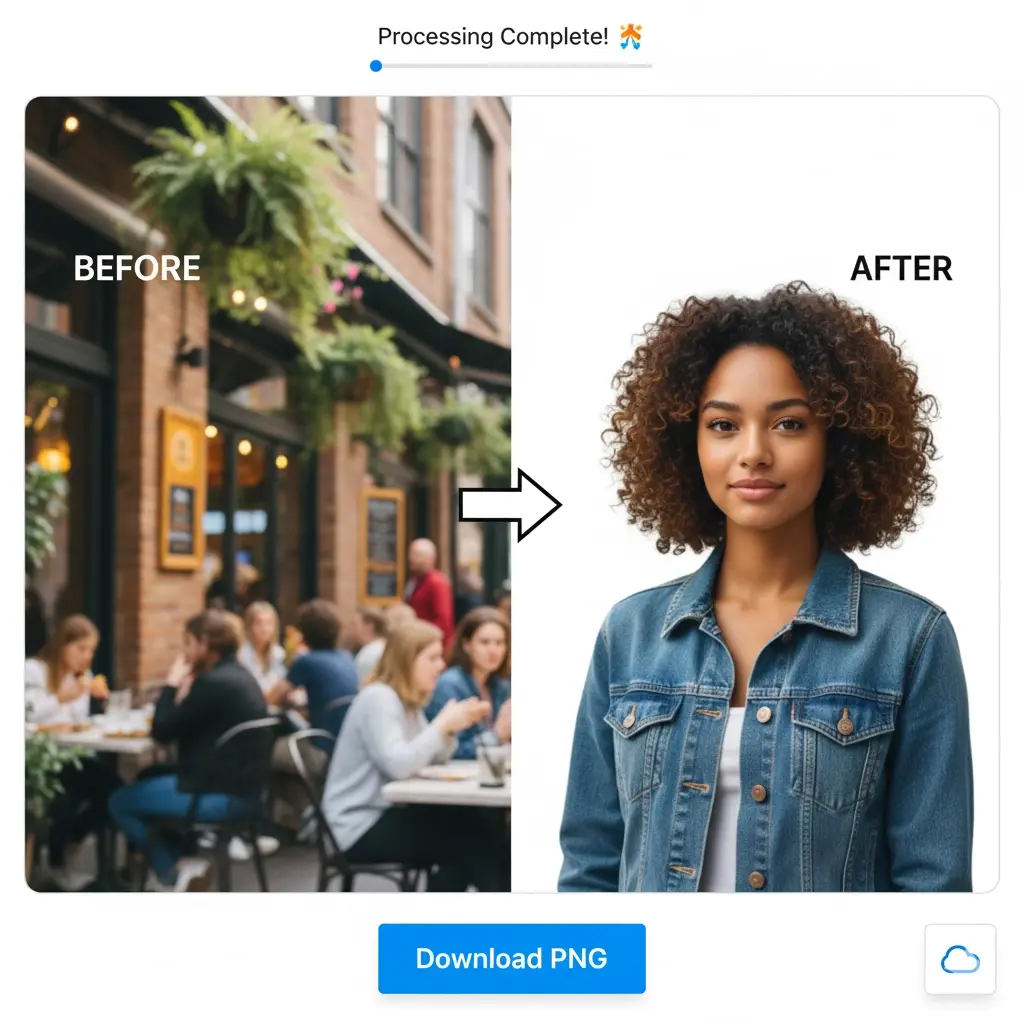
Modern background remover tools run on AI models trained to recognize subjects in a photo — a person, a product, a car, a pet — and separate that subject from everything around it. Instead of you manually tracing an outline, the model predicts the edge pixel by pixel and erases the rest, usually exporting a transparent PNG.
The process is nearly identical across the major free tools, which is why a single walkthrough covers most of them.
How to Remove Background From an Image for Free: Step by Step
- Choose a tool. Pick a background remover based on what you need — remove.bg for the cleanest one-click cutout, Canva if you’re already building a graphic, Adobe Express if you want quick follow-on editing.
- Upload your image. Most tools accept JPG or PNG up to 25–30MB. Drag and drop, or use the upload button.
- Let the AI process it. This takes a few seconds. The tool detects the subject and removes the background automatically — no manual selection needed.
- Review, refine, and download. Zoom in on edges (hair, fingers, thin objects) before downloading. Most free tools offer a basic manual eraser/restore brush for small fixes. Download as a transparent PNG, or place it on a new background if the tool supports it.
Best Free Background Remover Tools, Compared
These three are the most consistently reliable free options in 2026. None of them is “best” outright — it depends on what you’re doing with the image afterward.
| Tool | Best For | Free Tier Limits | Edge Quality on Hair/Fur |
|---|---|---|---|
| remove.bg | Fastest, no-fuss single-image removal | Free previews are lower resolution; full-res downloads are paid | Good on clean edges, struggles on wispy/fine hair |
| Canva Background Remover | When you’re already designing a graphic and want to keep editing | Free with a Canva account; some features are Pro-gated | Moderate — fine for most social graphics |
| Adobe Express | Quick cutout plus light follow-on editing (text, resizing) | Free tier available; higher resolution needs Adobe account | Moderate, similar to Canva |
All three are genuinely useful for what they’re built for: quick, casual, one-image-at-a-time edits. Where they consistently fall short is complex edges, color fringing around the subject, and — critically — consistency when you need dozens or hundreds of images to look identical.
Free Methods That Don’t Rely on AI
AI tools get most of the attention, but they’re not the only free option — and for some images, a manual method actually gives you more control.
- Windows Photos app / Paint 3D: Paint 3D’s “magic select” tool lets you rough out a selection and refine it manually. It’s slower than an AI tool but useful when the AI keeps mangling a specific edge.
- GIMP (free, open-source): The Select by Color and Fuzzy Select tools work well on images with a solid, high-contrast background — a product shot on white or green screen, for example. It takes a few extra minutes but gives pixel-level control an automated tool won’t.
- Photoshop’s Object Selection Tool: If you already have a Photoshop trial or subscription, its AI-assisted Object Selection Tool tends to handle fine detail (hair, fur) more accurately than most free web tools, since it lets you paint corrections directly onto the mask.
These aren’t faster than an AI web tool, but they’re worth knowing about when a subject has a tricky edge that keeps coming out rough no matter which AI tool you try.
Where Free Tools Fall Short (And When to Skip Them)
Free AI background removal is genuinely good technology, but it’s built for speed and volume, not precision. Knowing its limits saves you from redoing work later:
- Fine detail: Hair, fur, glass, mesh fabric, and jewelry edges are the hardest thing for any AI model to cut cleanly. You’ll often see a faint halo or missing wisps of hair.
- Color fringing: AI cutouts frequently leave a thin ring of the old background color around the subject, which becomes obvious once placed on a new background.
- Batch consistency: Running 200 product photos through a free tool one at a time produces 200 slightly different results — inconsistent edges, inconsistent shadow handling, no unified style.
- Print resolution: Free tiers usually cap output resolution. Fine for a web listing; not fine for a catalog print run or a large banner.
- Marketplace compliance: Amazon, Shopify, and similar platforms have exact background and pixel requirements. A generic AI cutout doesn’t automatically meet them.
If you’re editing a single casual photo, a free tool is genuinely the right call — there’s no reason to overpay for that. But if any of the five points above apply to your project, that’s usually the signal to bring in a professional editor rather than spend hours fixing AI artifacts by hand.
When It’s Worth Using a Professional Background Removal Service
At Clarity Edit, our editors handle background removal for e-commerce sellers, photographers, and agencies who need results free tools can’t consistently deliver — pixel-perfect edges on complex subjects, marketplace-compliant backgrounds, and identical quality across an entire product catalog, not just one photo.
Unlike the AI tools above, the work is human-edited, which is what makes it hold up on the fine detail — hair, fur, jewelry — that trips up automated cutouts. New clients can try it with two free sample edits before committing to anything, so it’s easy to compare the result directly against a free AI tool on your own images.

Tips for Better Background Removal Results (Free or Professional)
- Shoot with contrast in mind. A subject that visually contrasts with its background — in color or brightness — is dramatically easier for AI (and humans) to cut out cleanly.
- Use the highest resolution source image available. Upscaling a low-res photo after the fact never recovers detail an AI model needs to find clean edges.
- Even, diffused lighting beats harsh shadows. Hard shadows on or around the subject confuse edge detection and often get left behind as artifacts.
- Export as PNG, not JPG, when you need transparency. JPG doesn’t support a transparent background at all.
- Check edges at 200% zoom before publishing. Fringing and missed strands are easy to miss at normal viewing size and obvious once the image is live.
Frequently Asked Questions (FAQs)
Yes, for basic single-image use. Tools like remove.bg, Canva, and Adobe Express offer a genuinely free tier, though high-resolution downloads, batch processing, and some advanced features are often gated behind a paid plan.
It depends on your workflow. remove.bg is the fastest for a single quick cutout. Canva and Adobe Express are better if you’re already building a graphic and want to keep editing in the same tool afterward.
Yes — remove.bg, Canva, and Adobe Express all have mobile apps or mobile-friendly websites that work the same way as desktop: upload, let the AI process it, download.
This usually happens with fine detail — hair, fur, fabric mesh, or glass — that AI models still struggle to isolate precisely. It also shows up when the original photo had low contrast between the subject and background, or was low resolution to begin with.
When you need consistent results across many images, when the subject has complex edges (hair, fur, jewelry), when you need print-resolution output, or when your images must meet a specific marketplace’s technical requirements. A professional background removal service is built to handle exactly those cases.
If a Free Tool Isn’t Quite Cutting It
Free background removal handles the vast majority of everyday cases well — social graphics, personal projects, a one-off product photo. But if you’ve read this far because a free tool keeps leaving rough edges on a hard subject, or because you’re staring down a folder of hundreds of product photos that all need to look identical, that’s usually the point where it’s worth having a professional editor look at it instead of spending another hour fighting an AI eraser brush.
A few starting points depending on what you’re dealing with:
- One tricky image with fine detail (hair, fur, jewelry) → Background Removal Service
- Complex shapes or multi-part products → Image Cutout Service
- The highest-precision manual edge work → Clipping Path Services
- A full product catalog that needs background removal, color correction, and shadows → E-commerce Image Editing
- 500+ images that need consistent, hands-off editing → Bulk Photo Editing Outsourcing